Work Schedule App: What to Check Before You Choose
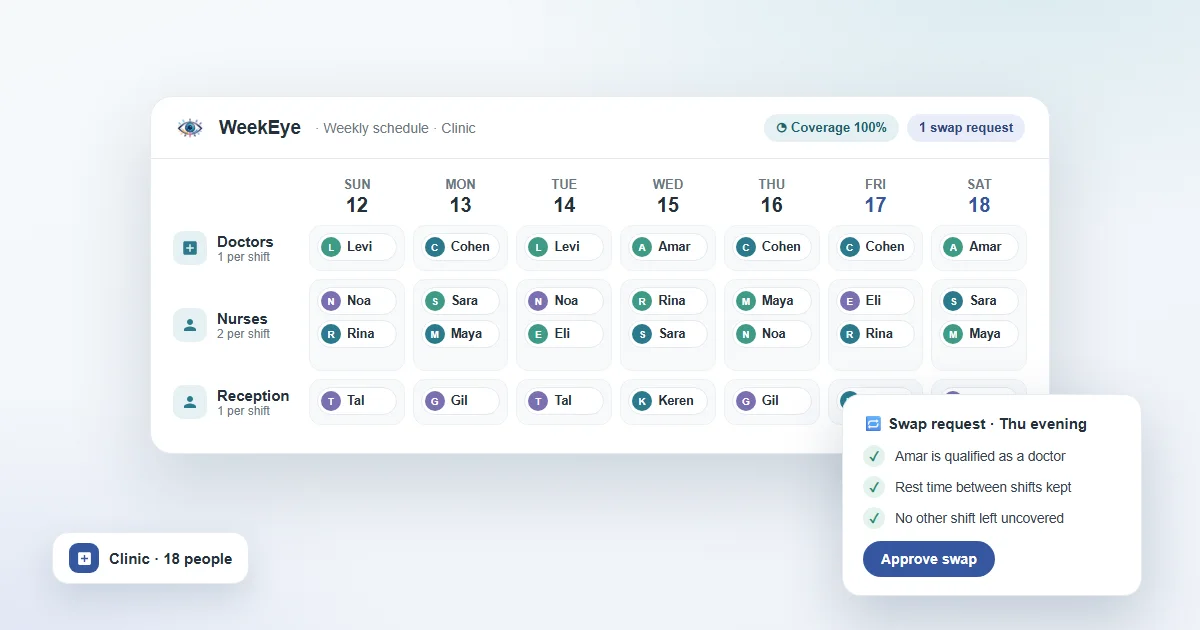
A good work schedule app builds a schedule that follows your organization's rules, collects availability and swap requests from employees in one place, and updates them on their phone the moment something changes. If all it does is show a table on a small screen, you have the same table with one more step in the middle. Below: six things to check before you choose, and what each one looks like in WeekEye.
Who uses the app, and what each of them needs
The manager needs to build a schedule fast, see gaps before they become a problem, and know that every change is checked against the organization's rules.
The employee needs to see their shifts without asking anyone, report when they are not available, and ask for a swap.
An app that serves only one side leaves the other side in a WhatsApp group. So check both sides.
Six things to check before you choose
1. It builds a schedule, not just displays one
Many apps let you enter shifts by hand and send them to employees. That works for a small team with one role. When there are several roles, several sites and requests that clash, building the schedule is the hard part.
In WeekEye you describe your team and shifts in your own words, in 9 languages, and the system builds roles, shifts and rules and proposes a weekly schedule. You can pin an assignment that has to stay where it is and regenerate the rest around it. Fairness is checked over time: nights, weekends and the shifts nobody looks forward to are shared among employees.
2. Rules are checked on every change
Rest between shifts, maximum hours, who does not work nights. Rules like these do not help if they are checked only the first time. The right question is what happens when you drag an employee to a different shift by hand, at seven in the evening, after someone called in sick.
In WeekEye the check runs on every suggestion the system makes and on every manual edit, and gaps, conflicts and rule violations are flagged the moment they appear.
3. Employees submit availability without you chasing them
When availability is collected in private messages, someone has to copy it into a table. A good app takes constraints directly from the employee, the manager approves them, and they go into building the next schedule.
In WeekEye approved availability and constraints go into the engine, and it builds the schedule around them while keeping staffing requirements. You can read more on the page team communication around the work schedule.
4. Shift swaps are checked before they take effect
A swap between two employees always looks simple. Then it turns out the second employee is not qualified for the position, or is supposed to rest that day, or the swap leaves another shift unstaffed.
In WeekEye a swap request is checked before it takes effect: the replacement's role and qualification, their availability, rest time, and whether another shift is left without cover. The manager approves.
5. Draft until published, and notifications only for those affected
A schedule the team can see while the manager is still working on it causes confusion and unnecessary phone calls. In WeekEye the schedule stays a draft until you approve it. Once published it reaches your team's phones, and each employee is notified only about changes that concern them.
6. You can bring what you already have
If your schedule lives in Excel, there is no reason to type it in again. In WeekEye you can upload an Excel file (xlsx or xls), CSV or PDF of an existing schedule. The builder shows what it understood and asks before it assumes, and nothing is saved until you approve. PDF files need to contain text, because scanned images are not read. The details are on the page importing a schedule from Excel.
How to test an app in one hour
Don't judge by the demo. Take a real week from your team and do four things with it:
- Upload or describe your current schedule, and check that the roles and hours were read correctly. Pay special attention to night shifts that end the next morning.
- Add one rule your team really sticks to, for example who does not work nights, and see whether it holds when the system builds a new week.
- Mark an employee as sick in the middle of the week, and see whether you can close the gap without rebuilding everything.
- Request a swap between two employees, including one that should fail, and see whether the app stops it.
If these four actions pass without going back to the spreadsheet, the app is right for you.
An example with a restaurant team
Say you run a restaurant with waiters, cooks and two shift managers, three shifts a day, including an evening shift that ends after midnight. Here is the hour, step by step.
First describe the team in one sentence and check that the builder picked up the three roles and the evening shift that ends after midnight. If it was read as a shift that ends the same day, fix that before you go on.
Then add one rule: whoever finishes an evening shift does not come back for a morning shift the next day. When the system builds the week, go over the board and check that nobody was scheduled against the rule.
Next, drag a cook by hand to a morning shift right after an evening shift. If the violation is flagged at once, the rule is active in manual edits too. Then report that a waiter is sick in the middle of the week, and see whether you can cover their shift without rebuilding everything.
After that, request a swap between a waiter and a cook. It should be flagged as invalid and not take effect, because the replacement is not qualified for the position. Then try a valid swap between two waiters and check that it waits for the manager's approval.
Finally, publish the draft and check what one employee sees on their phone. Then change one shift in the published schedule. If only the people affected by the change are notified, and not the rest of the team, the employee side works as it should.
WhatsApp, Excel or an app
WhatsApp is fast for messages, but swap requests and availability get buried in the thread, and nobody there checks whether a swap breaks a rule.
Excel gives you full control and suits a small team with a simple schedule. It does not check whether a change you made breaks a rule, and updating the team stays manual work. If you are still on Excel, there is a work schedule template to download and a guide that also explains when the table stops being enough.
An app fits when the team grows, when there is more than one role, or when swaps and last-minute changes are routine. In WeekEye swaps and changes stay in one place.
How to get started with WeekEye
- Write a sentence that describes your team, or upload an existing schedule.
- Check what the builder understood: roles, shifts, people and rules.
- Get a draft weekly schedule and adjust it in the chat or by hand.
- Publish to your team, and the shifts appear on each employee's phone.
You can try it without signing up: on the home page you write one sentence and watch the organization being built. Without an account you can upload one file of up to 5MB.
More about building the schedule itself on the page a work schedule built from one sentence, and about the engine on the page AI scheduling.
How much it costs
The plans on the pricing page start at $3 per employee per month. You pay only for employees scheduled in the last 30 days, and the minimum is 10 employees. The employee app, availability, requests and swaps are included from the first plan, Core. Writing the schedule from one sentence and free-text rules are in the Smart plan.
The trial lasts 14 days, needs no credit card, and includes every feature. According to the pricing page, payment is not open yet, and the details will be published before it opens.
Want to see how it looks for your team?
Write one sentence that describes your team and shifts, and get a draft work schedule. Start free with WeekEye, no credit card needed.
Frequently asked questions
Do employees need to install an app to see the schedule?
Not necessarily. Employees see their shifts on their phone through the WeekEye app, and the schedule is also available in the web app. They get notified about changes that affect them, report availability and request swaps.
Can I try it without signing up?
Yes. On the home page you write one sentence that describes your team and watch the organization being built, with no sign-up. Afterwards you can save the account with Google or with email.
Can I move an existing schedule from Excel?
Yes. You can upload Excel (xlsx or xls), CSV or a PDF that contains text. The builder shows what it understood and waits for your approval before anything is saved. When trying it without an account, you can upload one file of up to 5MB.
What happens when an employee asks to swap a shift?
The request is checked against role and qualification, availability, rest time, and whether another shift would be left unstaffed. The manager approves before the swap takes effect.
Which languages can I use?
You can describe your team in 9 languages: Hebrew, English, Arabic, Russian, French, Spanish, German, Portuguese and Romanian.
Is the schedule sent to employees before I approve it?
No. The schedule stays a draft until you approve and publish it, and only then does it reach your team's phones.
Build your own schedule from one sentence
Describe your team and Weekeye drafts the roles, the shifts and a fair weekly rota — free, no sign-up.
Start free with WeekEye