How to Switch from Excel to Scheduling Software
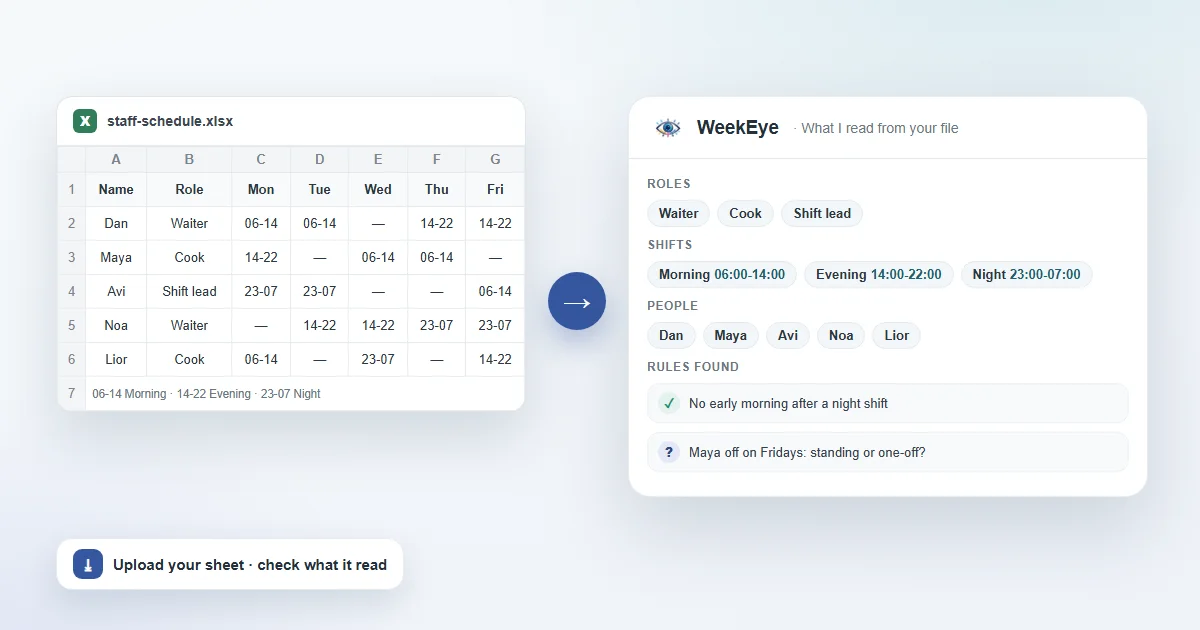
You do not have to rebuild your schedule from scratch to leave Excel. Upload the file you already use, let the software read it, check what it understood, and compare the next generated week with your sheet. With WeekEye you can test it first: upload one file as a guest, with no sign-up.
This guide is the practical part of the move: what to fix in the spreadsheet first, what the import reads, what to check afterwards, and a four-week plan. If you are still deciding whether to leave Excel, start with our comparison of spreadsheets and scheduling platforms.
Should you leave Excel at all?
If your schedule takes ten minutes a week and nobody complains, stay. If building it takes over an hour, or swaps and availability live in a group chat, see our comparison of spreadsheets and scheduling platforms to decide.
What to clean in the spreadsheet first
Software reads a grid better when the grid says plainly what it means. Run the as-is test below first, then spend 15 minutes on these five things before the real import:
- Write times, not nicknames. "Morning" means nothing to a tool. "06:00-14:00" does. Add the times in a legend row or next to each shift.
- Use one name per person, spelled one way. "Dan", "Daniel" and "Dan K." are three people to a reader that has never met you.
- Put meaning in text, not color. Green for "on call" disappears the moment the file becomes a CSV or a PDF. Write "On call" in the cell.
- Mark night shifts clearly. A shift that runs 23:00-07:00 should show both times, so the end is not read as the same day.
- Delete old tabs and test data. Keep the current schedule, and a recent week or two if you want them for comparison. Three years of copies only add noise.
Fix what a manager would also stumble over, and the import has less to misread.
Which files work
WeekEye reads Excel (.xlsx and .xls), CSV and PDF files that contain text. Scanned images of a paper schedule are not read. If your schedule is a photo of a whiteboard, retype it into a sheet first.
From the file, the builder reads the roles, the shifts with their start and end times, the people, and the patterns in the grid, such as who never works nights or how many waiters a Friday evening carries. Patterns become rules you can open and change. If your file is not a clean grid, upload it anyway: the builder tells you what it could and could not read.
Test with one file before you sign up
You can try a single file of up to 5 MB as a guest, without an account. Guest sessions are temporary and expire on their own. Use a real week, not a sample, because the point is to see whether the tool understands your logic.
Here is a ten-minute test:
- Pick the schedule you know best: the one where you can name every exception from memory.
- Upload it as it is, without tidying first. You learn more about the import that way.
- Look at what it understood. Do the roles match? Are the shift times right?
- Note what it asked you. A tool that asks before assuming is better than one that guesses silently.
If it got most of the structure right on a messy file, you already know the switch is realistic.
What to check after the import
WeekEye shows what it understood as an editable structure and asks before assuming. Nothing is committed until you say so. Use that moment. These are four checks worth making:
| Check | What to look for | Typical fix |
|---|---|---|
| Roles | Two roles merged into one, or one split into two | Merge or split them |
| Shift times | Night shifts with the wrong end time, or a shift missing | Correct the times, especially across midnight |
| People | Someone missing, or listed twice | Add or merge them |
| Rules | A one-off from last month recorded as a permanent rule | Delete the rule |
The last row matters most. If the sheet shows that Maya had three Fridays off in a row because of an exam, a grid alone cannot tell a standing arrangement from a one-time favor. You can.
For a longer list of what to ask any tool that imports Excel, see what to check when you import an Excel schedule.
Compare the next week with your sheet
This is the step that tells you whether the switch worked. Once everyone is included, generate the next week and put it next to your own version for the same week. Go through it in this order:
- Is every shift staffed, in the right role?
- Does anyone work a night followed by an early morning?
- Are nights and weekends spread across the team instead of landing on the same people?
- Would you publish it as is, or what would you change?
You will find differences. Some are mistakes in the import, and you fix them in the rules. Some are mistakes in your sheet that nobody noticed, such as the same person closing three Saturdays running. A generated schedule is a proposal until a manager publishes it, so you can fix a difference before anyone sees it.
What changes for your staff
In Excel, staff get a file. In WeekEye, after you sign up and save, every employee can see their shifts on their phone. Availability and requests come in from the phone, and swap requests go to the manager, who approves or declines them in one place instead of a group chat.
A realistic plan for the first month
- Day 1: test the file as a guest, as it is.
- Week 1: clean the file, sign up, import, correct the structure, generate next week and compare.
- Week 2: publish the generated schedule and keep the sheet as a backup.
- Week 3: stop updating the sheet.
- Week 4: review which rules you added by hand and which you still carry in your head.
Keeping the sheet for one week is not a sign of doubt. It is how you find out what the software missed while the stakes are low.
Try it with your own file
Upload the schedule you already have and see what WeekEye builds from it. Read more about Excel import, how AI scheduling uses the rules, and the plans.
Frequently asked questions
Can I import a schedule from Google Sheets?
In Google Sheets, choose File, Download, then Microsoft Excel (.xlsx) or CSV, and upload that file. A CSV holds one tab at a time, so export the tab with your schedule.
What happens if the import misreads my file?
You see what it understood before anything is saved, and you can edit roles, shifts, people and rules. It tells you what it could and could not read.
Does the importer read a scanned or photographed schedule?
No. Scanned images are not read. Retype the schedule into a sheet or export a text-based PDF.
Do I need an account to try it?
No. You can try one file of up to 5 MB as a guest. The 14-day trial of the full product also needs no credit card.
Is Excel import available on every plan?
Yes. Excel import is included in every plan.
Build your own schedule from one sentence
Describe your team and Weekeye drafts the roles, the shifts and a fair weekly rota — free, no sign-up.
Try it free: upload your Excel schedule